VeraCrypt encrypted partition shared between Linux and Windows
Like many people, I use dualboot, using Linux and Windows on my computer. I have one disk partition, which I want to be accessible from both Linux and Windows. On that shared data partition, I have some documents, photos, source code, GPG keys, and much more stuff I want to be encrypted.
Please note, that I’m not a security expert. This guide is probably imperfect from the security perspective! I am also not responsible, if you break your system or corrupt your data in any way!
I chose VeraCrypt, because it is multiplatform. On Windows, I installed VeraCrypt from the official website. On Linux, it is possible to use cryptsetup, so I used that instead of installing VeraCrypt.
Example setup
I’ve created a virtual machine for this example, using dualboot with Fedora 36 and Windows 11 (I use those systems on my real setup). The shared partition, which we will encrypt by VeraCrypt, is formatted as NTFS.
On Linux, to be able to use NTFS, I use NTFS-3G.
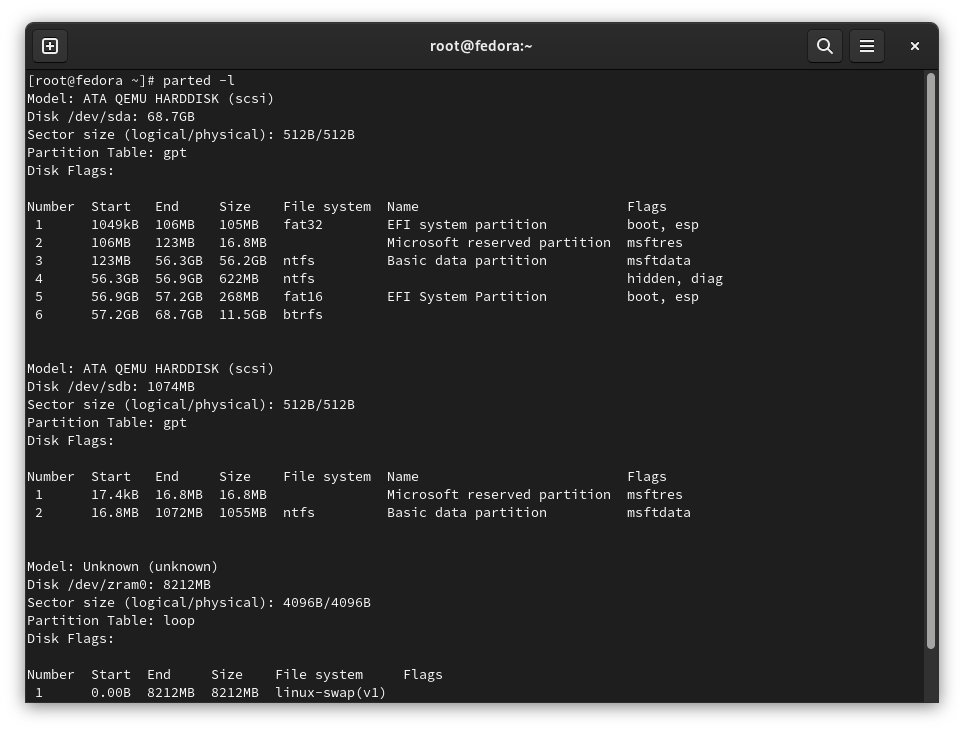
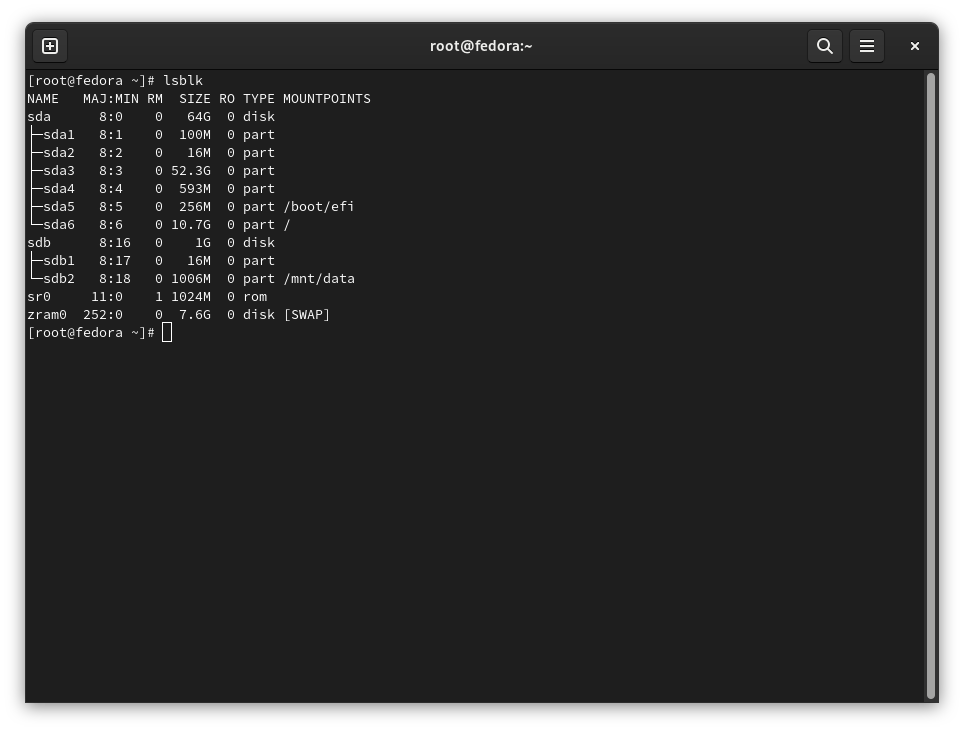
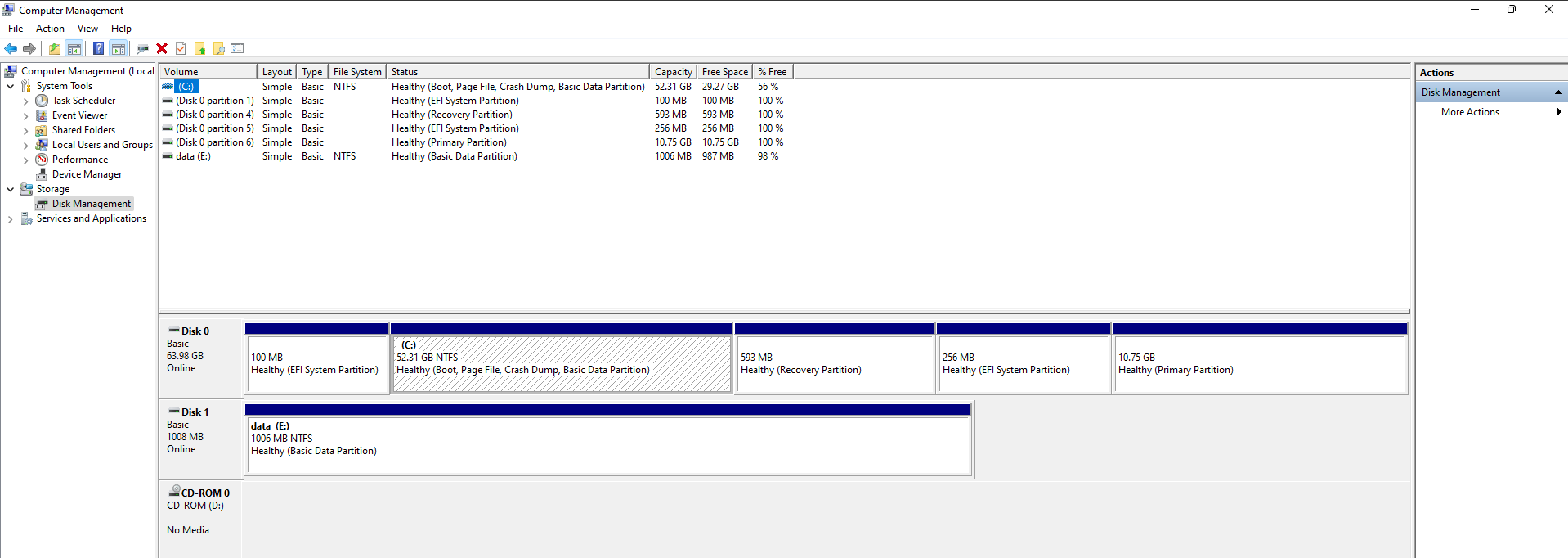
Disk layout looks like this:
- disk
/dev/sdais system disk - Fedora and Windows are installed there- contains Linux and Windows root partitions, EFI partitions, and other “system” partitions
- disk
/dev/sdbis data disk - with the shared partition I want to encrypt- it is just 1GB capacity for the demo
- partition
/dev/sdb2is the shared data partition I want to encrypt
Following screenshots show the disk layout using parted and lsblk on Linux
and Disk management on Windows.
Your disk layout might be completely different, of course. You might have just one disk, for example.
Encrypt the shared partition
I want to encrypt the partition in-place - without wiping the data on it. Sadly, this is possible with VeraCrypt only on Windows. This is why I will encrypt the partition from Windows
Windows
Run VeraCrypt with elevated privileges. Click on button Create volume.
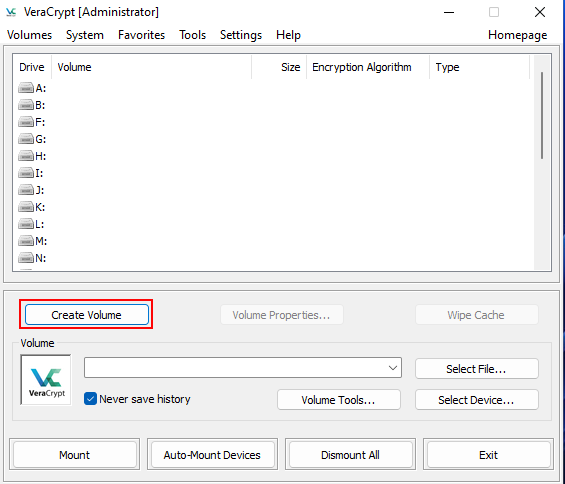
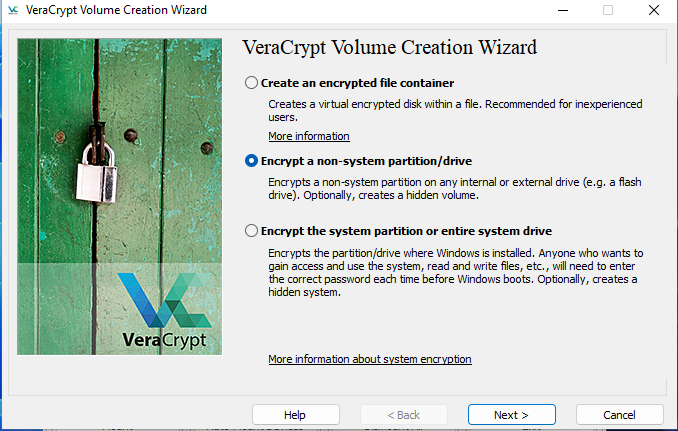
Select Encrypt a non-system partition/drive.
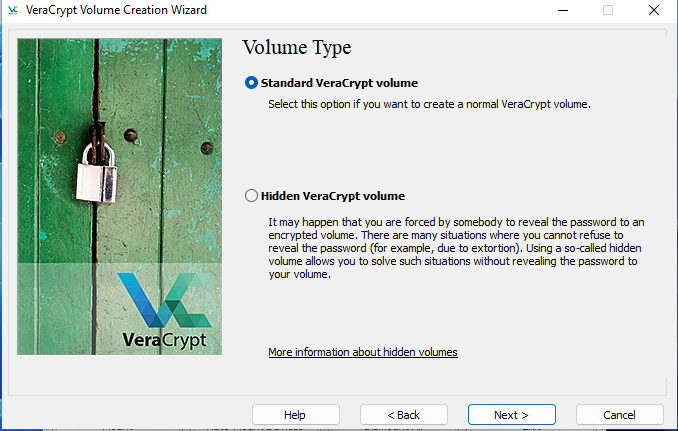
Select VeraCrypt volume type. I selected Standard VeraCrypt volume.
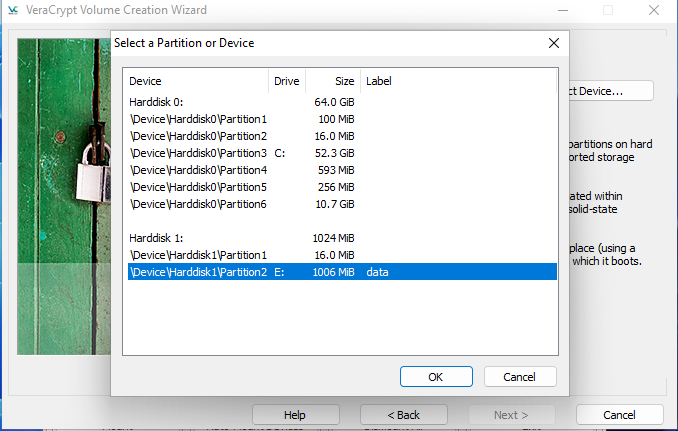
Select partition you want to encrypt.
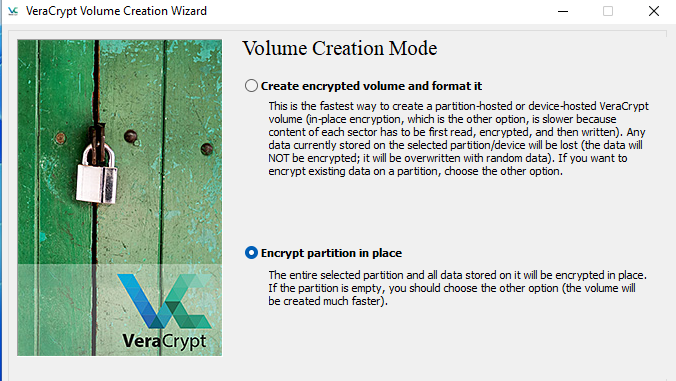
Select Encrypt partition in place.
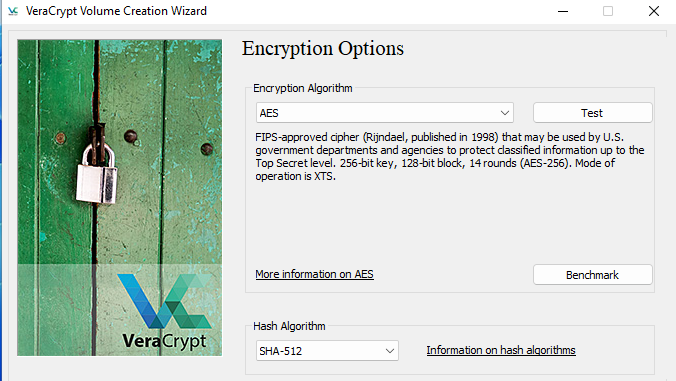
Select encryption algorithm and hash algorithm. I selected the default, which is
AES encryption algorithm and SHA-512 hash algorithm.
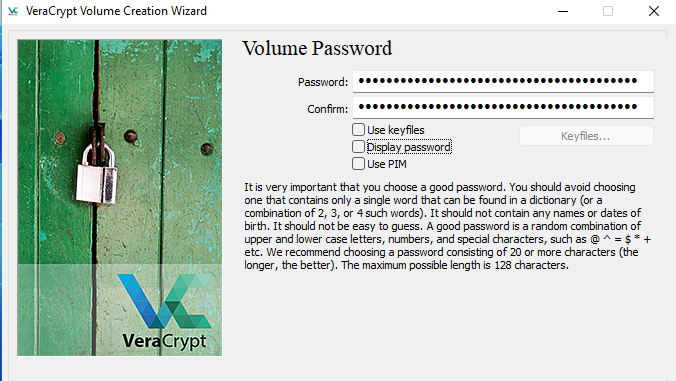
Create VeraCrypt volume password. The password should be strong, ideally generate one
in a password manager.
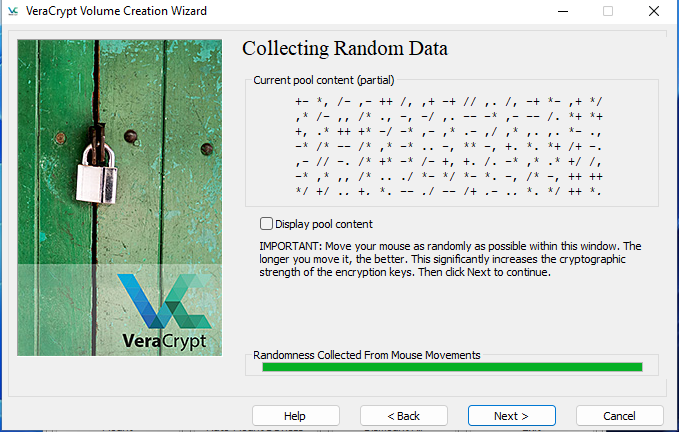
Move by your mouse until you generate entropy enough.
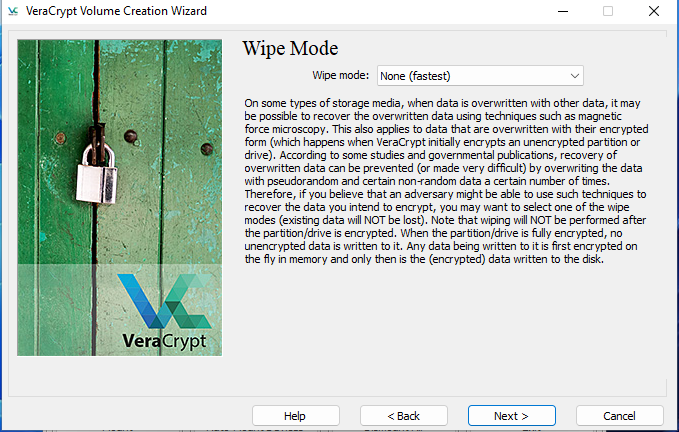
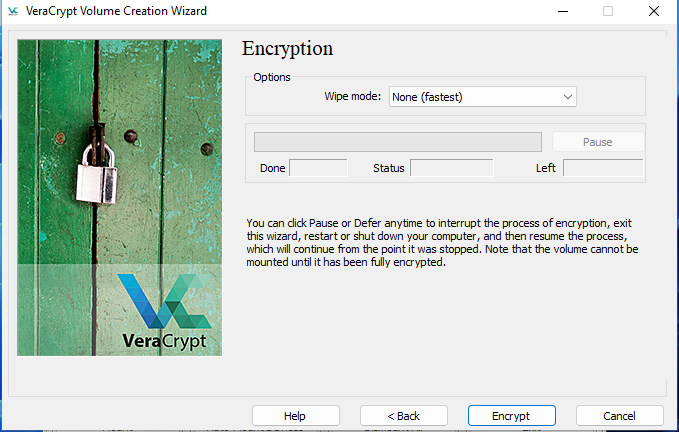
Select wipe mode. I selected None (fastest) for this demo.
You should select a more secure option!
The click on button Encrypt and wait until the partition is encrypted.
Then click on button Finish.
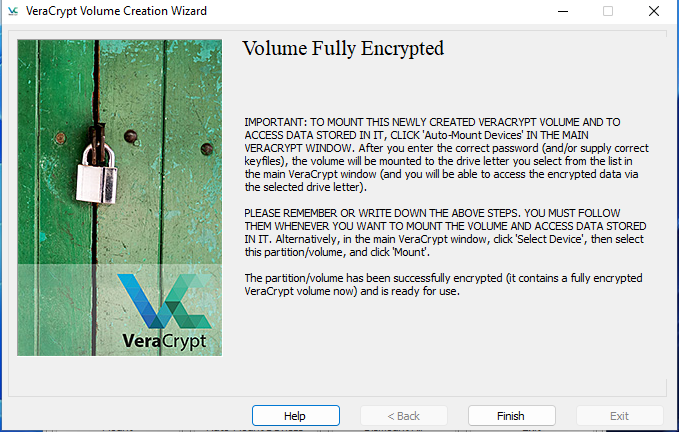
When the encryption is finished, you can mount the encrypted partition.
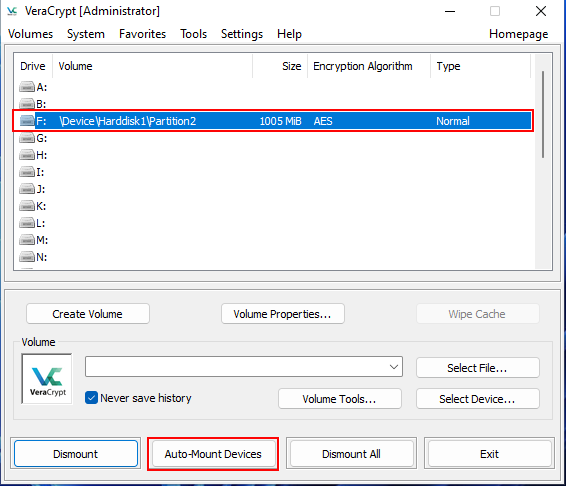
Select a free drive letter and click on button Auto-Mount Devices.
Enter your password and mount the encrypted partition.
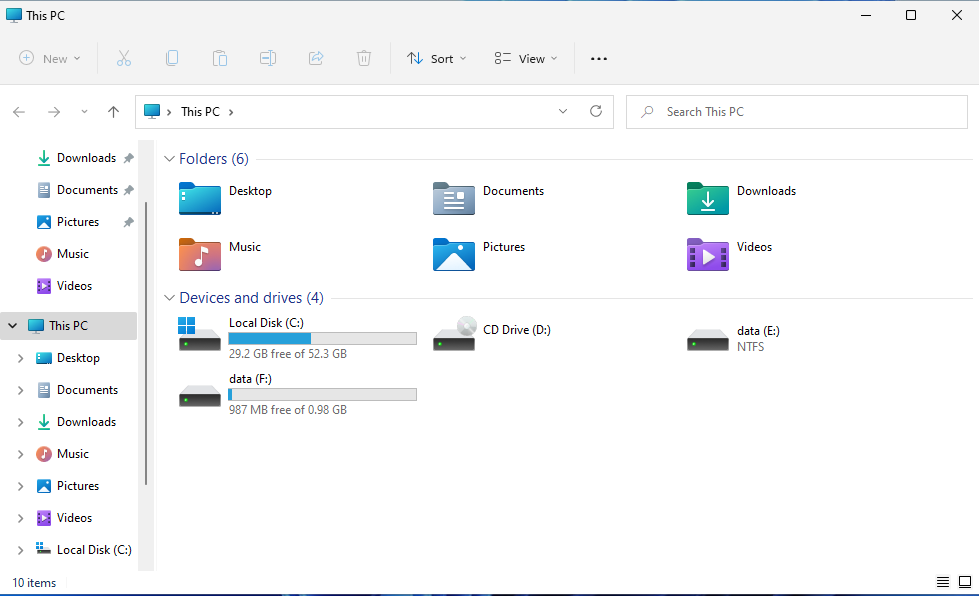
When you open a file manager, you should see one disk for the encrypted partition
(E: in this case; will be impossible to open) and one disk for decrypted partition - after we mounted
the encrypted partition in previous step (F: in this case).
Linux
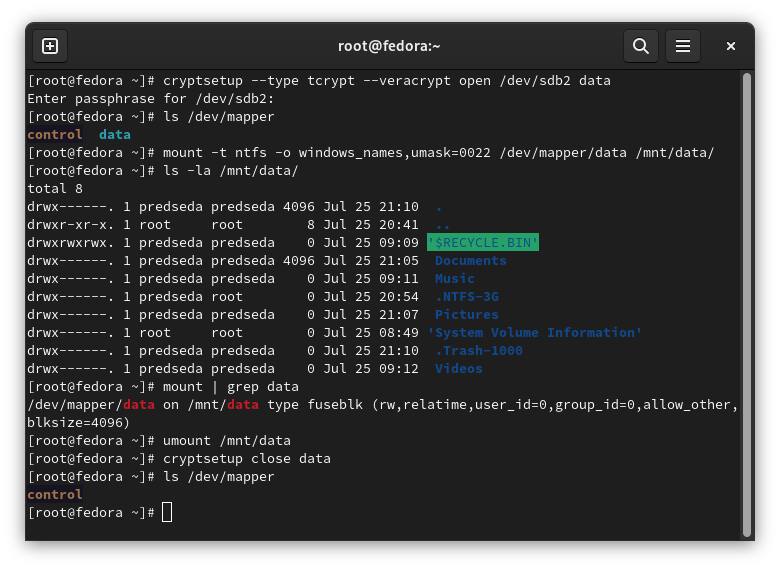
Open the encrypted partition by cryptsetup:
cryptsetup --type tcrypt --veracrypt open /dev/sdb2 data
That created a device on mapper: /dev/mapper/data.
Now it is possible to mount the decrypted partition:
mount -t ntfs -o windows_names,umask=0022 /dev/mapper/data /mnt/data
If you want to unmount the partition, simply use umount command:
umount /mnt/data
And optionally close the decrypted partition.
cryptsetup close data
Conclusion
And that’s it. Simple, right?
You can of course use different filesystem (you don’t have much of a choice, as Windows doesn’t support
many filesystems).
Why did I choose cryptsetup over installing VeraCrypt on Linux? Because cryptsetup is native tools to Linux,
it is already preinstalled on many distributions, and it works just fine.
Links
LUKS - official website
DMCrypt - official website
DMCrypt - Arch Linux wiki
cryptsetup usage - Arch Linux wiki
VeraCrypt - official website
VeraCrypt - Arch Linux wiki
NTFS-3G - official website
NTFS-3G - Arch Linux wiki